


Team Budgets
Teams in customer companies get monthly, quarterly or yearly purchasing budgets, and every overspend is visible right away, not only on the invoice.

About the module
The module gives each team a spending budget for a set period. The merchant sets a monthly, quarterly or yearly budget for a team in a B2B company. Every order placed by a team member counts toward the budget. An overspend is recorded and flagged on the order, and if the company has a matching approval rule, the order goes for approval.
Compatibility
The Team Budgets module is part of Satisfly B2B Suite. It works with version 2.4.7 and later, is compatible with Mage-OS and Magento Open Source, and works with popular themes such as Hyvä and Luma. It uses teams and cost centers from the Company Users module, order data from the Company Orders module and rules from the Order Approvals module. All three are included in the lower packages of the suite.
How it works
-
Budgets in the admin
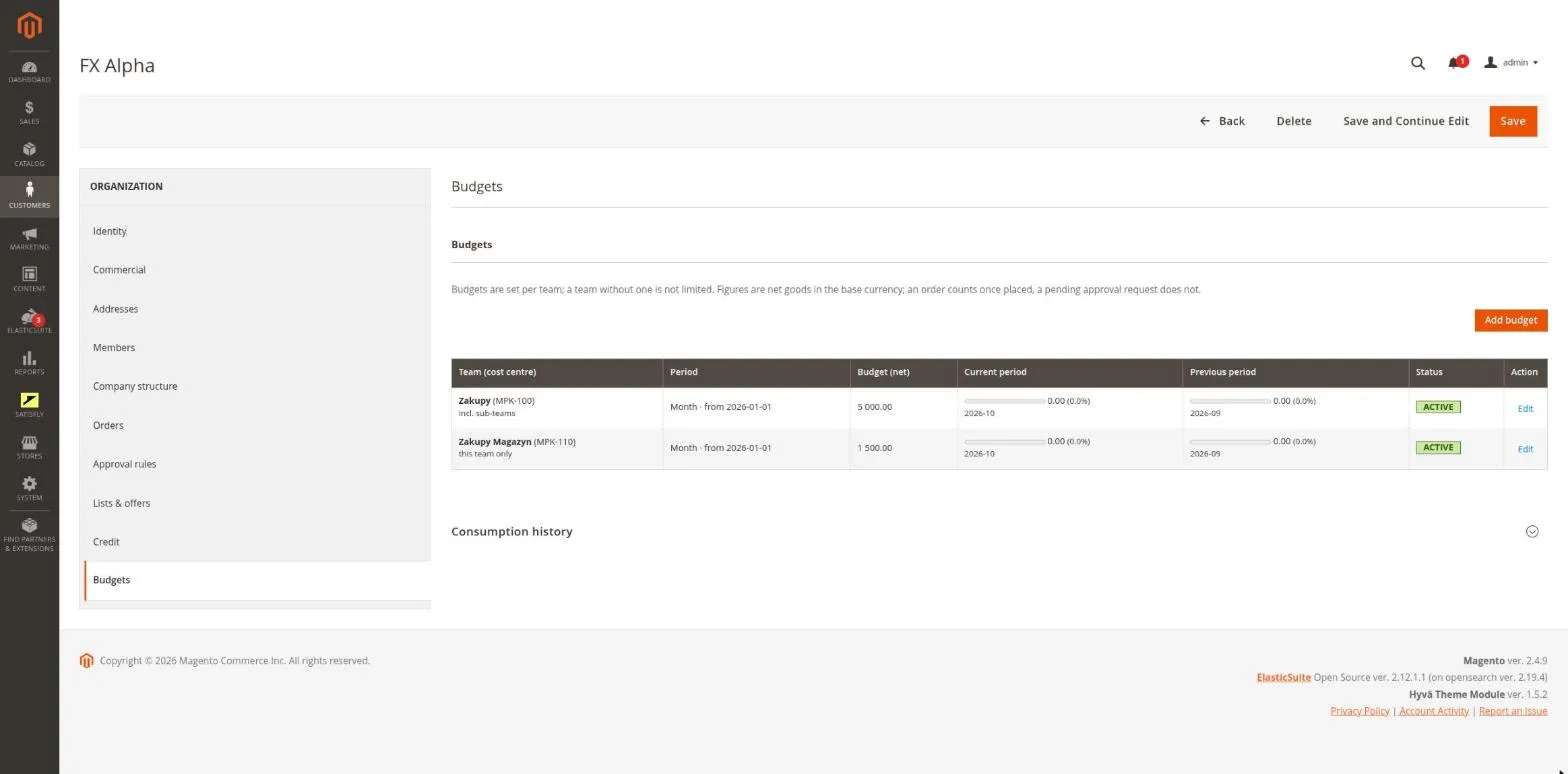
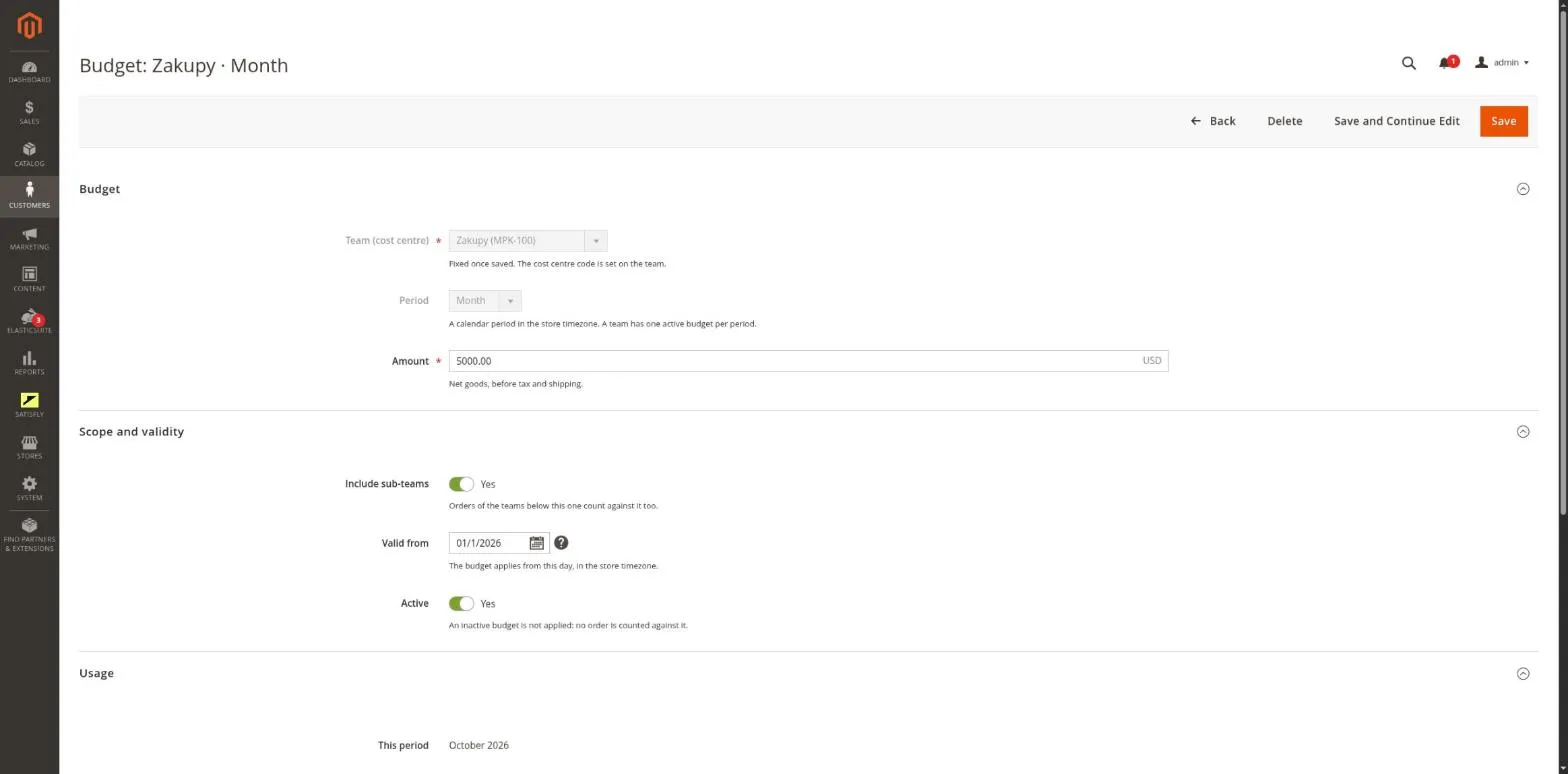
A team can have one active budget for each period type: month, quarter or year. A budget has an amount, an expiry date, an active flag and an “include sub-teams” switch.
-
What counts toward the budget
The budget counts the net value of goods in the order, excluding tax and shipping, in the website’s base currency. The amount is assigned to the period in which the order was placed, based on the store’s time zone. Canceling, deleting or refunding an order returns the amount to the same period.
-
Overspending
An order over budget is placed as usual but recorded as an overspend. In the admin, it is flagged on the order page with the team, period and overspend amount. The module itself never blocks an order.
-
Approval for over-budget orders
Order approval rules have an “exceeded budget” condition. Checkout checks whether the cart would exceed the budget, so the company can require approval for such orders.
-
Budgets in the storefront
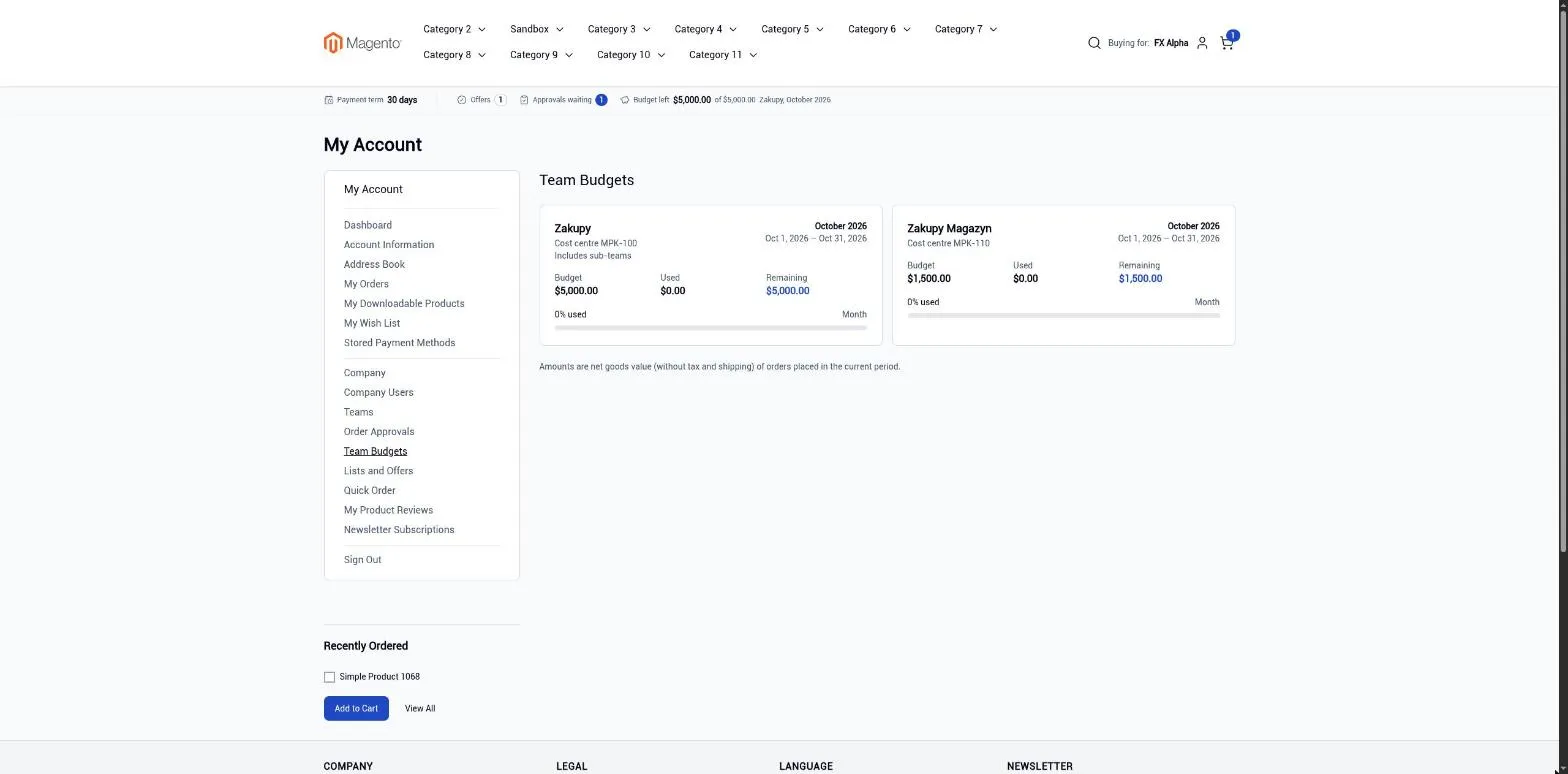
In My Account > Team Budgets, a member sees the budgets they have access to, with usage bars. The company bar in the header can also show how much of the member’s budget is left.
-
Operator console
The “Team budgets” block in the admin shows the member’s team, cost center and budgets. It also lets you check how the current cart will affect the budget without placing an order.
-
REST and GraphQL
Company budgets can be read through REST and GraphQL.
Merchant
The merchant opens an organization and goes to the Budgets tab. They select Add budget and choose the team, period and amount. They track usage on the bars, and an order over budget has an overspend flag on its page. If such orders should require approval, they add an approval rule with the “exceeded budget” condition.
Buyer
In My Account > Team Budgets, the buyer sees each budget: the current period, amount, usage and what is left. The usage bar turns into a warning at 90% of the budget and shows an error once the budget is exceeded.
Notes and limitations
What to know before you roll out team budgets.
-
 Only placed orders count, so two pending approval requests can exceed the budget together
-
A company with an active budget places orders one at a time, so parallel checkouts see current usage
-
A member who is not in any team does not use any budget
-
Budgets are in the website’s base currency and do not change with the display currency


