


Order Approvals
Orders over set limits wait for approval from the right people in the customer’s company and become an order automatically after the final approval.

About the module
Order approvals for company buyers. Rules set for each organization decide which orders need approval from another person and who gives it. The buyer submits the cart for approval, approvers decide stage by stage, and the final approval turns the frozen cart into a real order.
Compatibility
The Order Approvals module is part of Satisfly B2B Suite. It works with version 2.4.7 and later, is compatible with Mage-OS and Magento Open Source, and works with popular themes such as Hyvä and Luma. It requires the organization and organization-acl modules, so it is installed as part of the Pro package.
How it works
-
Approval rules
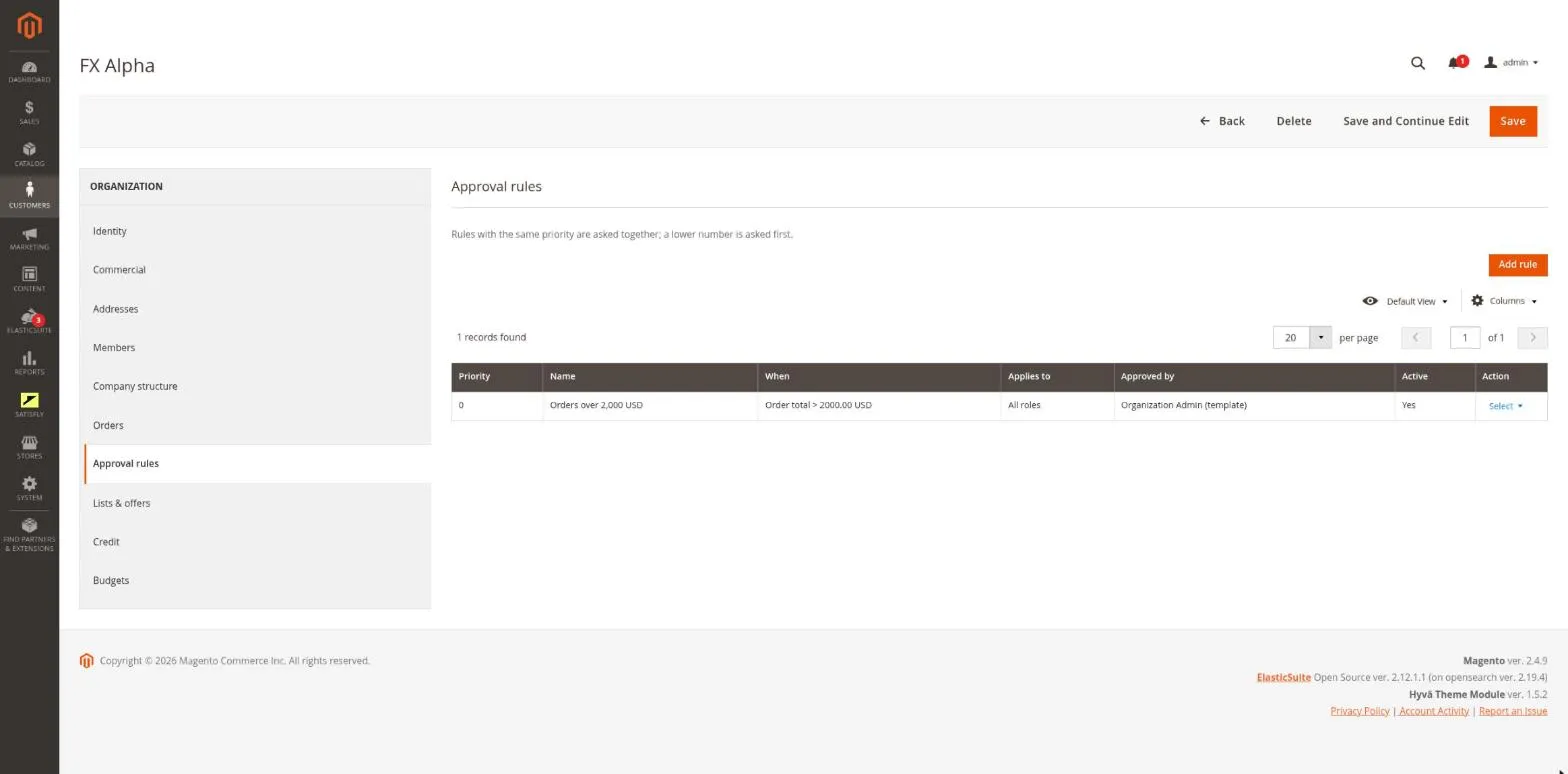
Each rule has one condition: order total, net value of goods, shipping cost, number of different products or an exceeded team budget. It also defines which roles it applies to, the approvers (a role, the buyer’s manager or the company admin) and a priority. Rules are set in the admin, on the organization form.
-
Multi-step workflow
Approvers with the same priority decide in parallel, and each next priority creates the next stage. A step that no one can complete goes to the company admins.
-
Submitting for approval
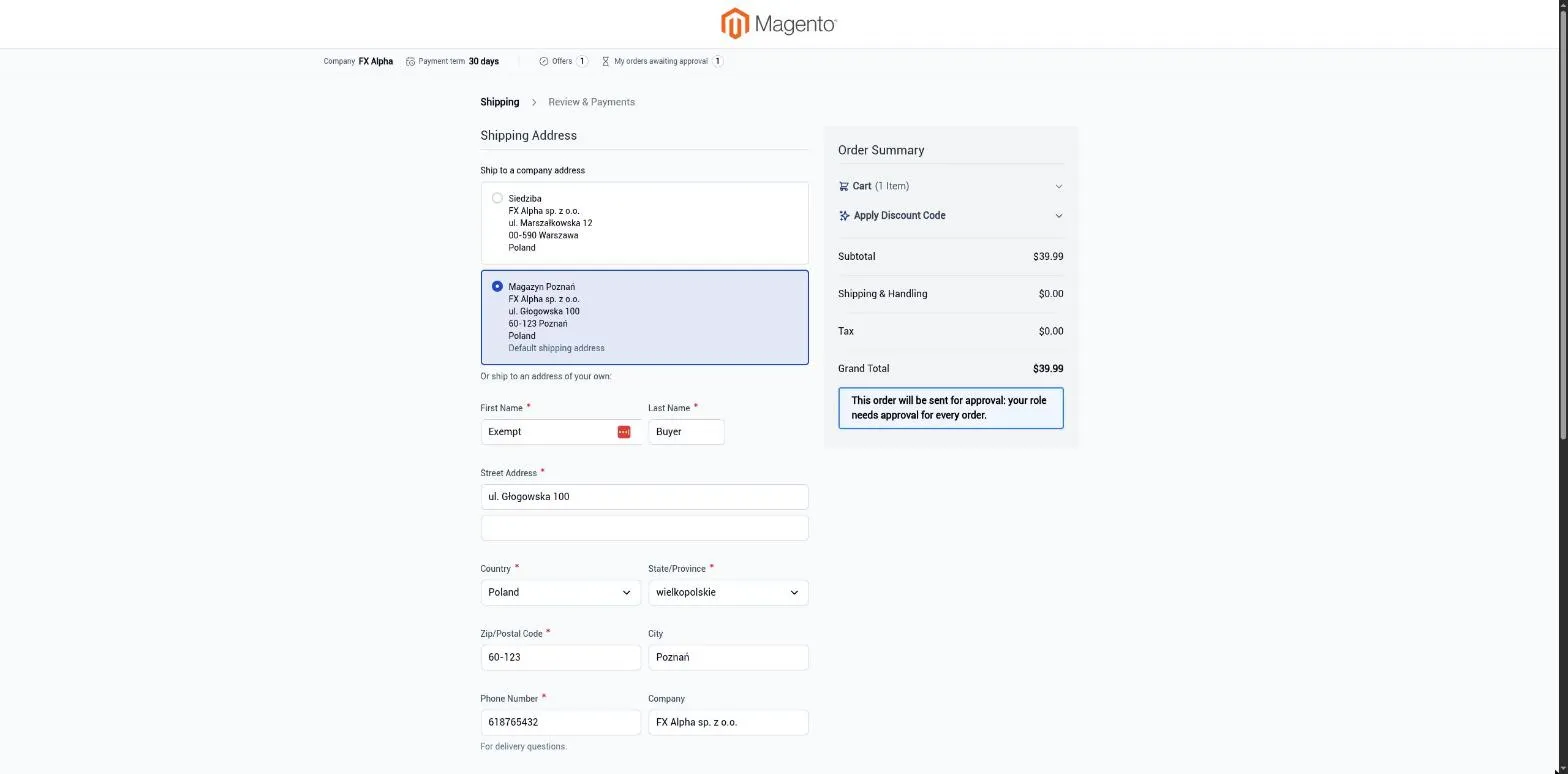
When an order needs approval, checkout shows a “Submit for approval” button instead of placing the order and gives the reason. The cart is frozen as a snapshot.
-
Converting to an order
After the final approval, the frozen cart becomes an order at the approved prices and amounts. A failed conversion is retried automatically, and an operator can also retry it manually.
-
Customer account
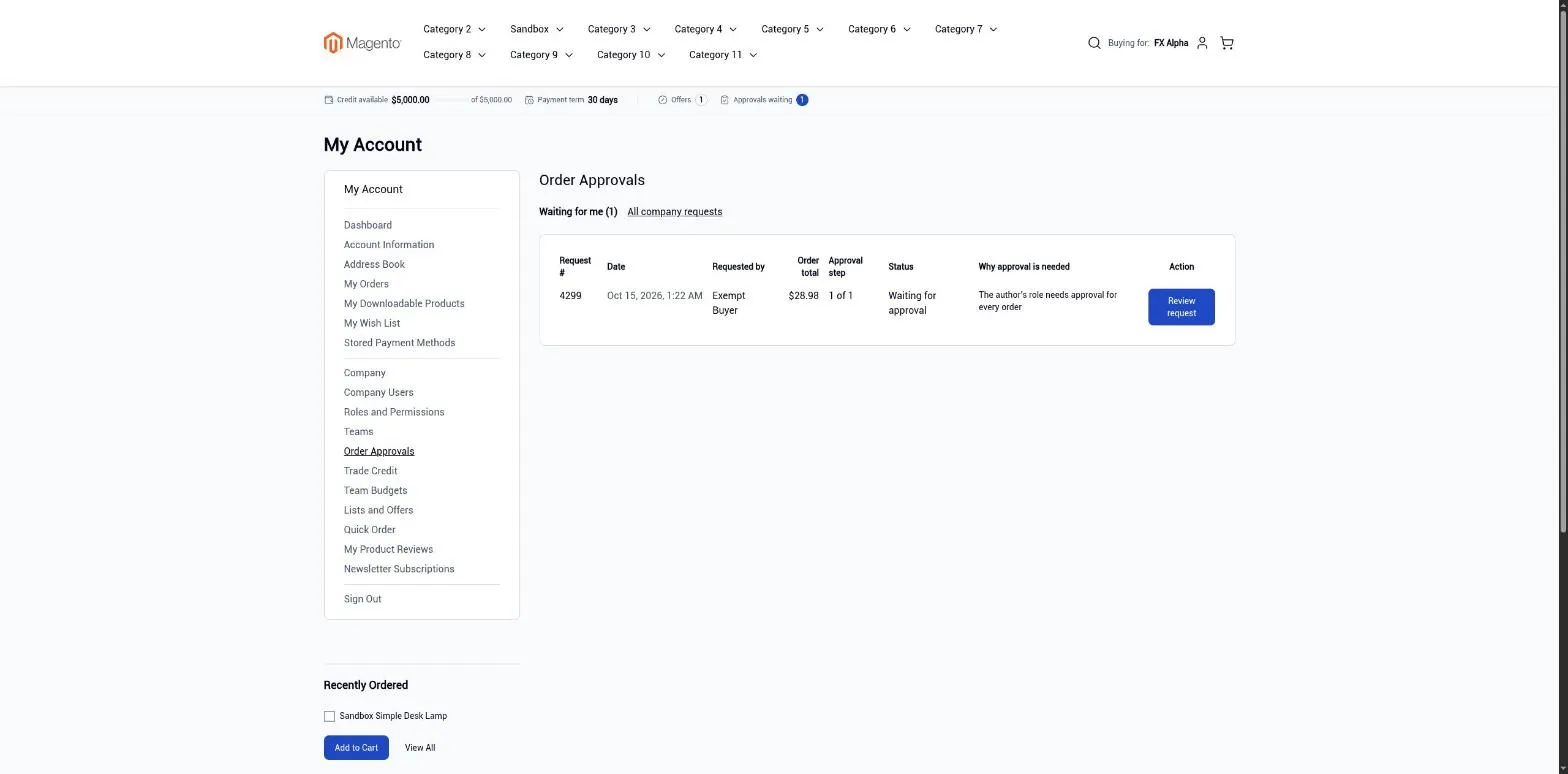
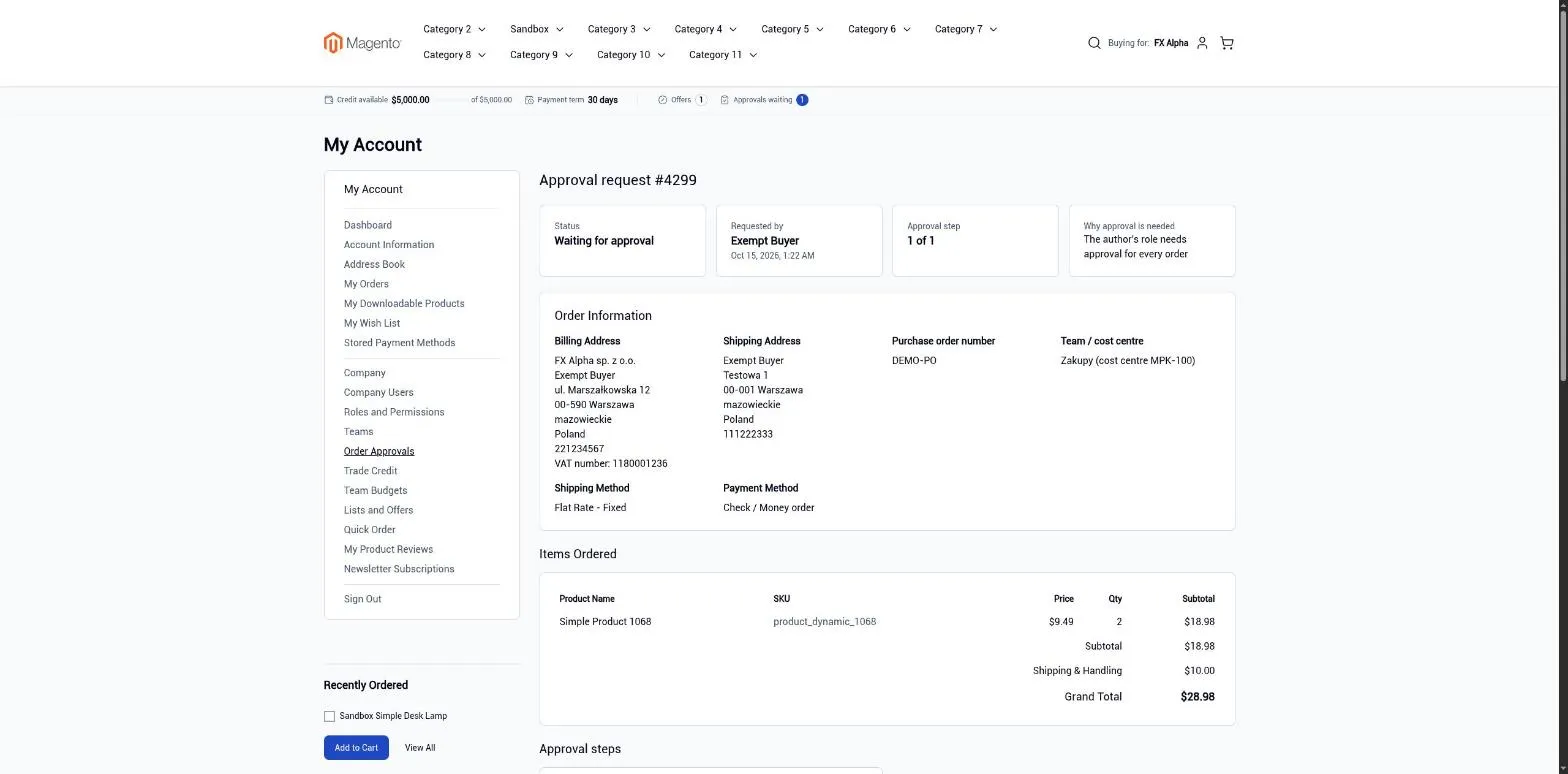
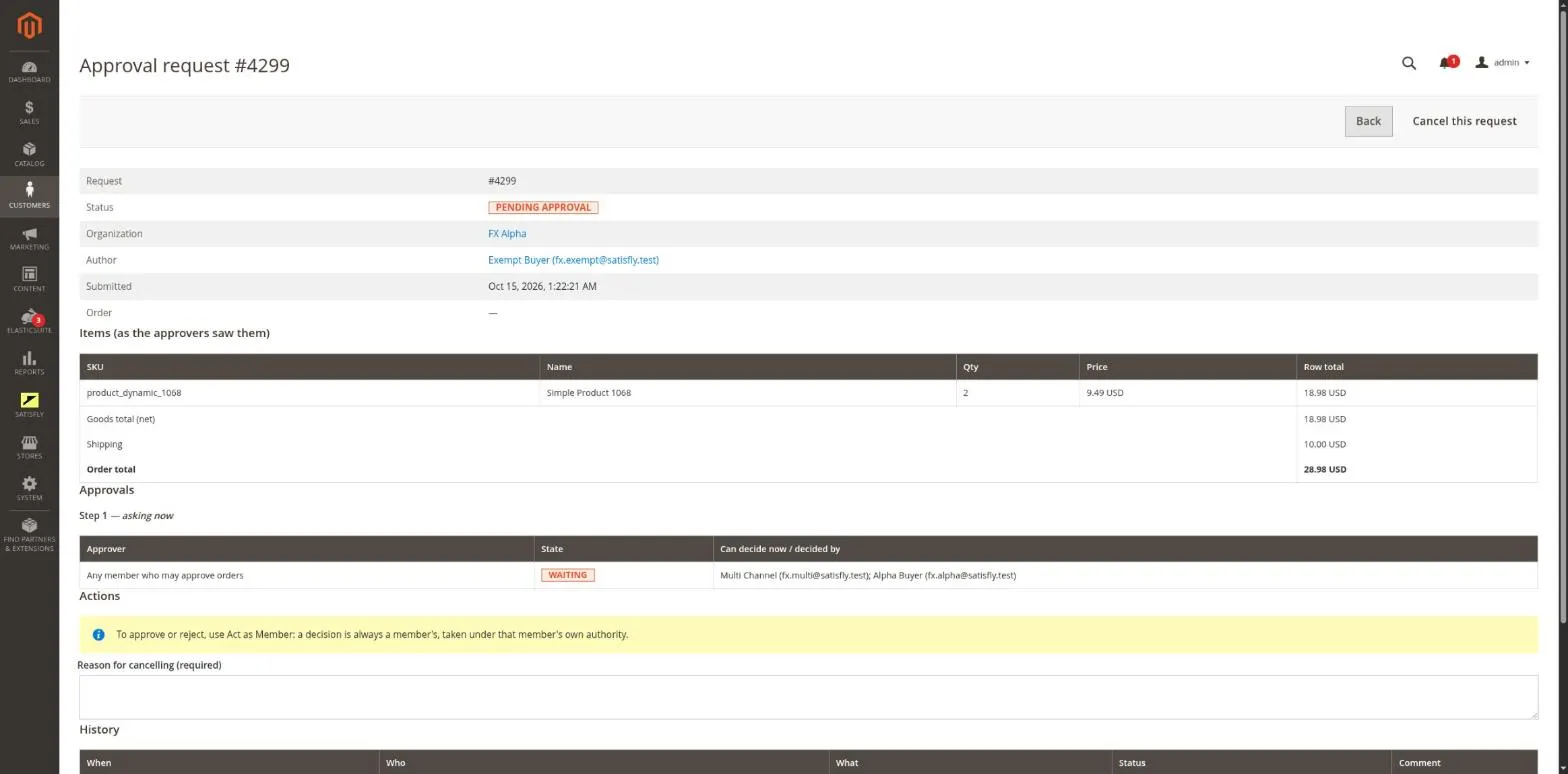
On the “Order Approvals” page, a member sees requests waiting for their decision and their own requests. The request page shows the cart, steps, history and the order created from it.
-
Magento admin
The admin has a list of all requests and a request page where you can cancel or retry a request. The organization form has a rules tab, the order page has an “Approval” row, and the “Act as Member” console has an “Order approvals” section.
-
Email notifications
The module has seven emails for buyers, approvers and support contacts. Each one is sent to a recipient only once per stage.
-
REST and GraphQL
Through REST, integrations can search and read requests, and approve or reject them. GraphQL supports the full set: list, details, submit, approve, reject and cancel.
-
Cron
Pending requests expire after a set number of days. Approved requests that have not become an order are converted again.
Merchant
The merchant opens an organization and adds a rule, for example “orders over 5,000 require the company admin”. They choose the approvers and save the rule. They track requests in Customers > B2B > Approval Requests.
Buyer and approver
Buyer: if the order falls under a rule, checkout explains why and the button changes to “Submit for approval”. After submitting, the buyer sees a confirmation page and can track or withdraw the request in “Order Approvals” in their account.
Approver: receives an email, opens “Order Approvals”, reviews the cart and approves or rejects it. A rejection requires a comment. The final approval places the order, and the buyer is notified.
Notes and limitations
What to know before you roll out order approvals.
-
 The module requires organizations and roles from the suite, so install it as part of the Pro package
-
A member of two companies sees the other company’s request only with a button to switch companies
-
Requests from a suspended company wait until it is reactivated, and closing a company cancels its open requests
-
Each rule has one condition. To use two conditions, create two rules
-
The team budget condition works only with the organization-budget module


