


Company Assortment
Each company sees and buys only the products you have set aside for it, in quantities that make sense for you.

About the module
The module sets catalog visibility and minimum order quantities separately for each company. An assortment is a set of rules assigned to companies: allowed and excluded categories, plus exceptions at SKU level. A company finds, sees and buys only what its assortment allows. You can also require it to order a minimum quantity of each product.
Compatibility
The Company Assortment module is part of Satisfly B2B Suite. It works with version 2.4.7 and later, is compatible with Mage-OS and Magento Open Source, and works with popular themes such as Hyvä and Luma.
How it works
-
Assortments
In the admin, you select allowed categories, excluded categories and SKUs that should always be included or excluded. A category also covers its subcategories, so new products in an allowed category appear in the assortment automatically. You can assign one assortment to many companies. A company without an assortment sees the full catalog.
-
Full control in the storefront
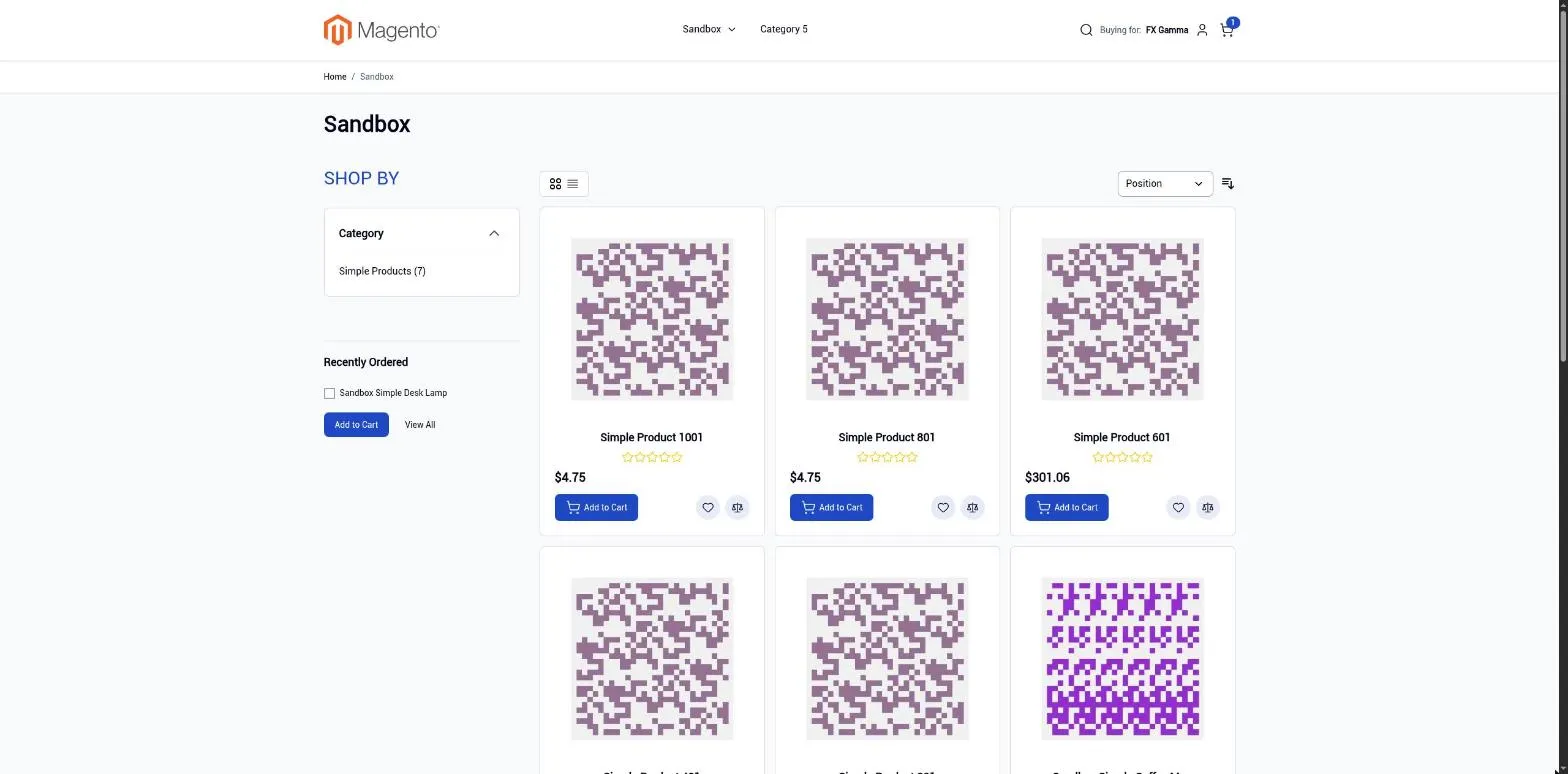
The rules apply across the entire store. They cover search and autocomplete, category listings and navigation, product pages, related products, up-sells and cross-sells, product comparison, the wishlist, every add-to-cart path and the cart itself. A hidden product behaves as if it did not exist.
-
GraphQL and REST
The same rules apply in the API, including cache keys, so two companies never get the same cached response.
-
Visitor assortment
Optionally, you can set a separate catalog that guests and customers without an assigned company see on the B2B website.
-
Minimum quantities
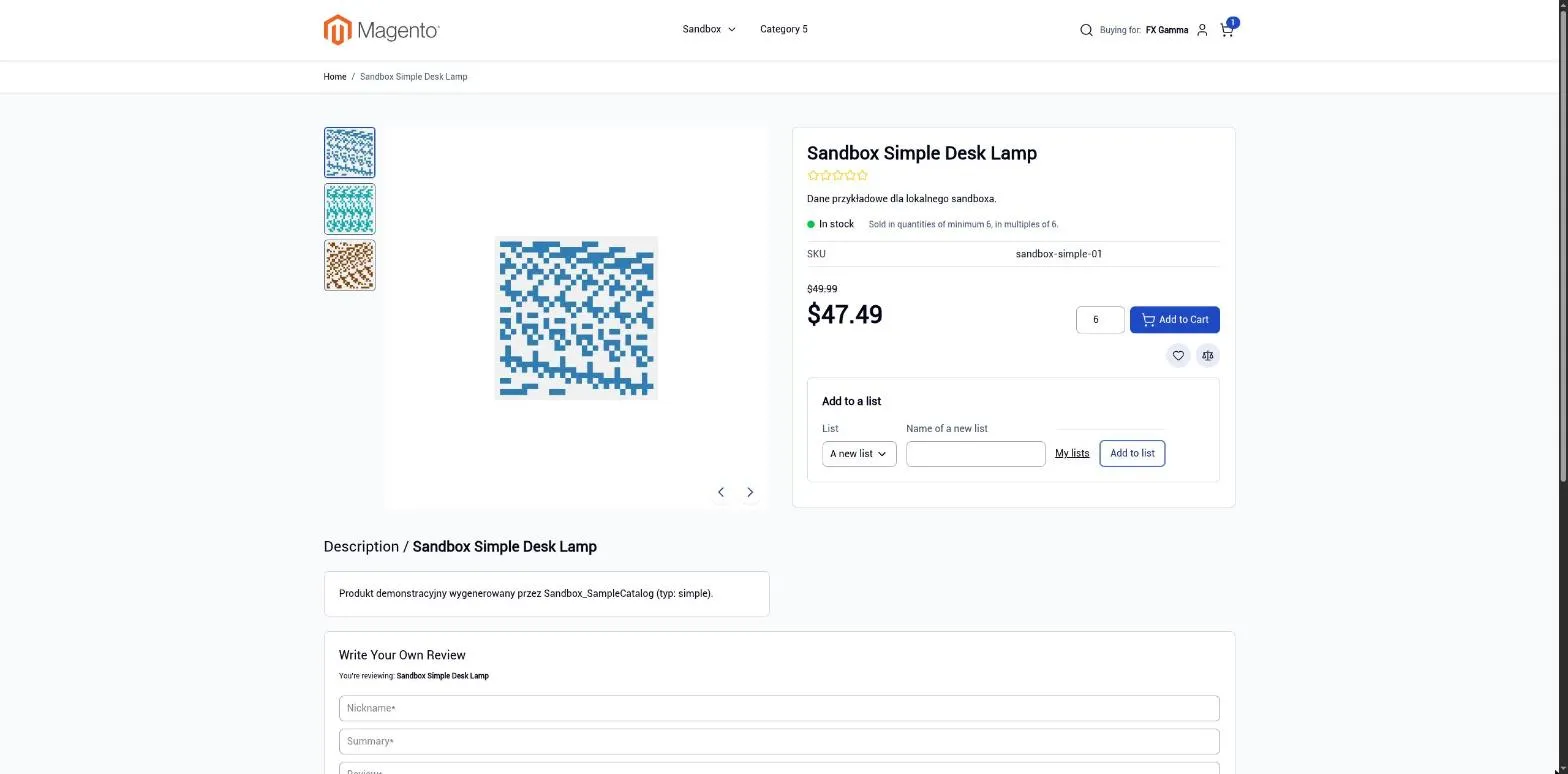
You set the minimum and an optional quantity increment for a product or category, separately for a company or for the whole assortment. The product page shows the requirement, and the cart and checkout reject quantities that do not match it.
-
Rules for admin users too
The order creation screen in the admin applies the same assortment and minimum quantity rules as the store.
Creating an assortment
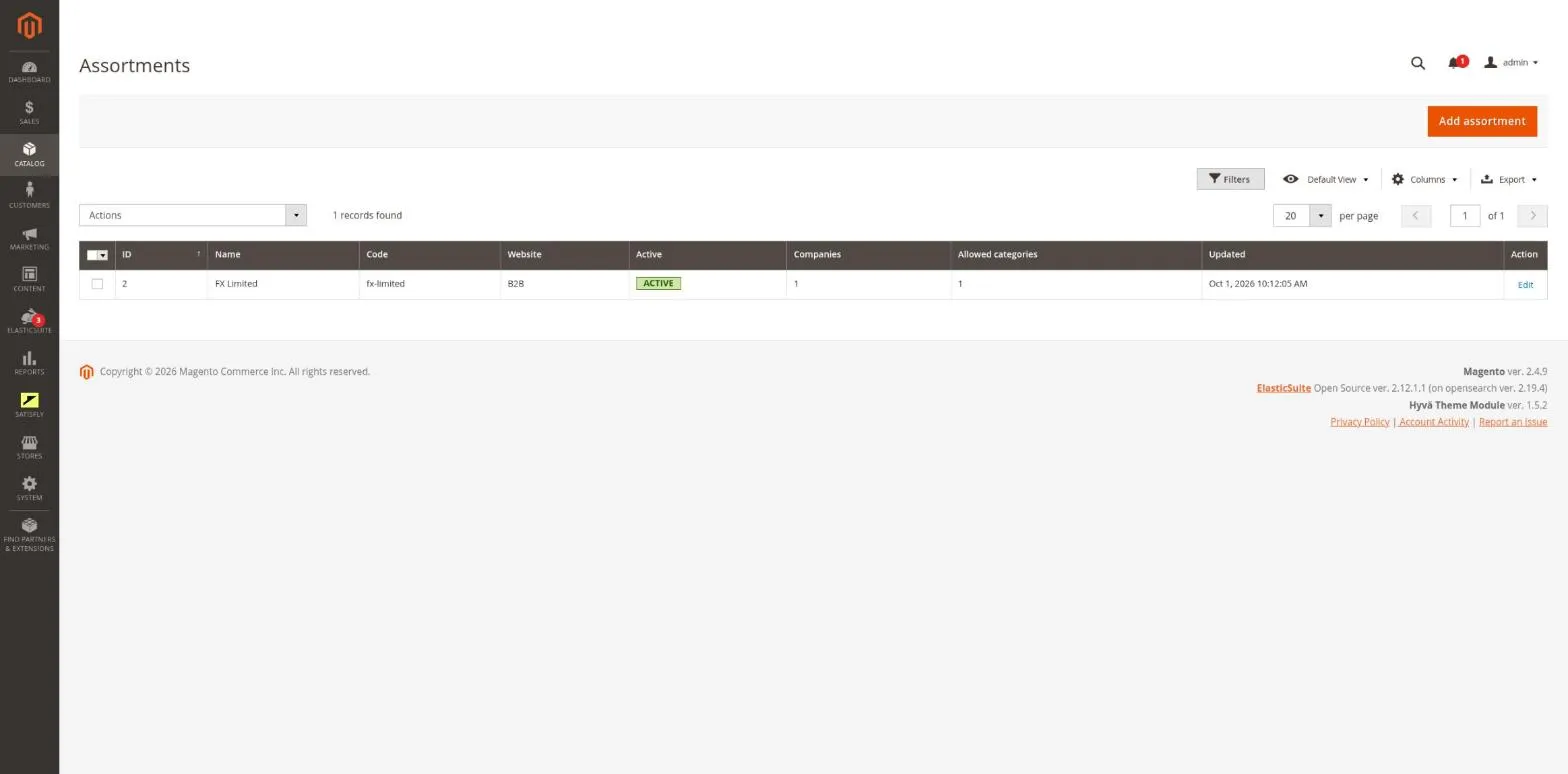
1. Go to Catalog > B2B > Assortments > Add assortment. Give the assortment a name and code, then select the website.
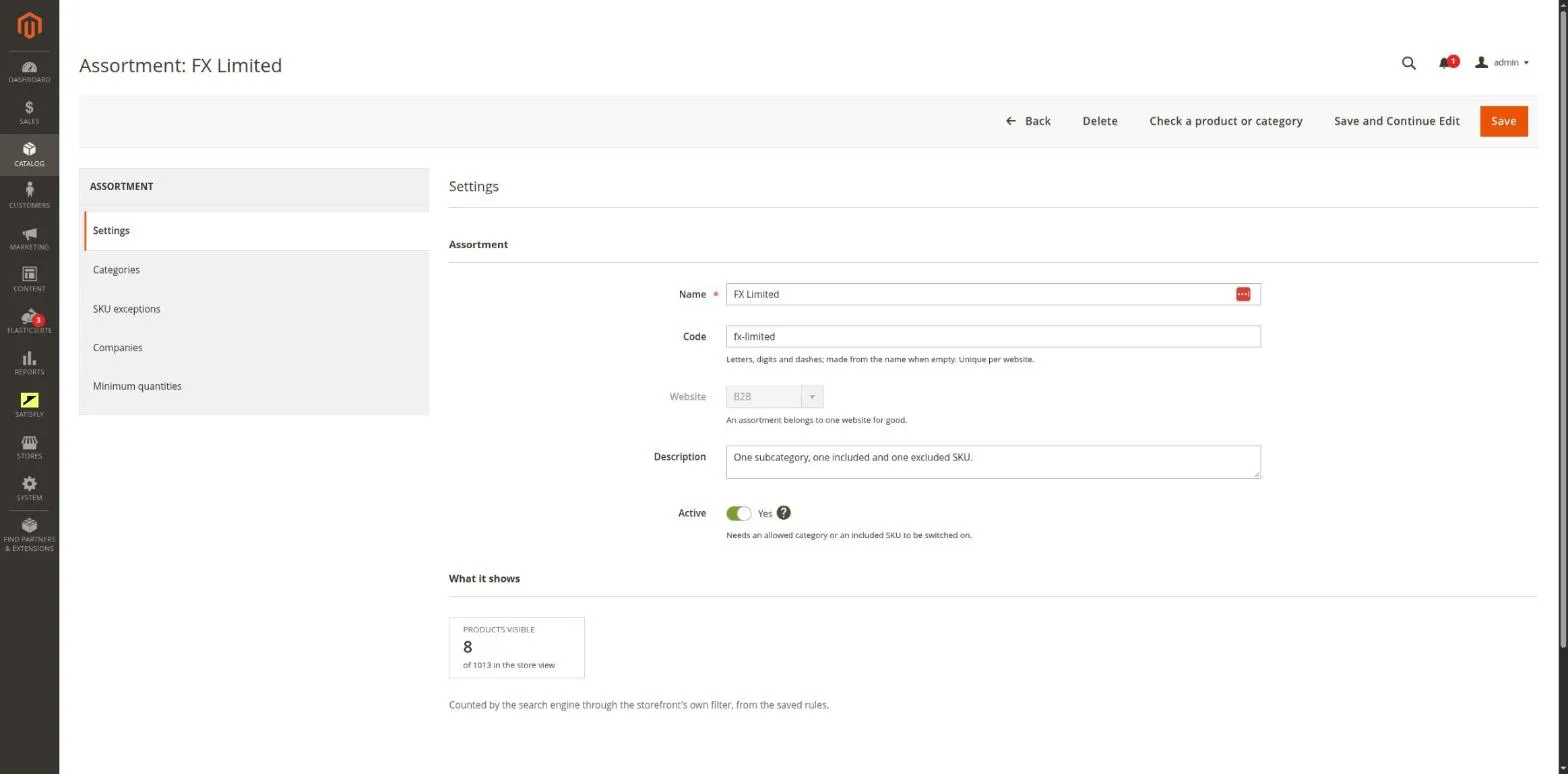
2. Select allowed and excluded categories, add SKU exceptions and save. Before you activate the assortment, it must have at least one allowed category or included product.
Assignment and activation
3. Add companies on the Companies tab or select the assortment on the company form. Branches inherit the assortment of the nearest parent company unless they have their own.
4. Switch the assortment to Active. The Check a product tool shows why a given product is visible or hidden.
Rules are evaluated in this order: SKU always excluded, SKU always included, excluded category, allowed category. The first matching rule wins.
Notes and limitations
What to know before you roll out company assortments.
-
 One rule list holds up to 20,000 IDs, and larger saves are rejected
-
The minimum is checked on every add to cart, so the first item from an import or a list must already meet it
-
Without the Hyvä module, navigation in Hyvä is not limited to the assortment
-
The assortment is not applied to admin grids, the CLI or queue consumers


