


Organizations
Every business customer gets its own company account in your store, with branches, trading terms and addresses, and buyers always order on behalf of the right company.

About the module
Every business customer has a company record in the store: identity, status, position in the company structure, trading terms and mailing addresses. Buyers act on behalf of the company, see its page and switch between companies in the store.
Compatibility
The Organizations module is part of Satisfly B2B Suite. It works with version 2.4.7 and later, is compatible with Mage-OS and Magento Open Source, and works with popular themes such as Hyvä and Luma.
How it works
-
Magento admin
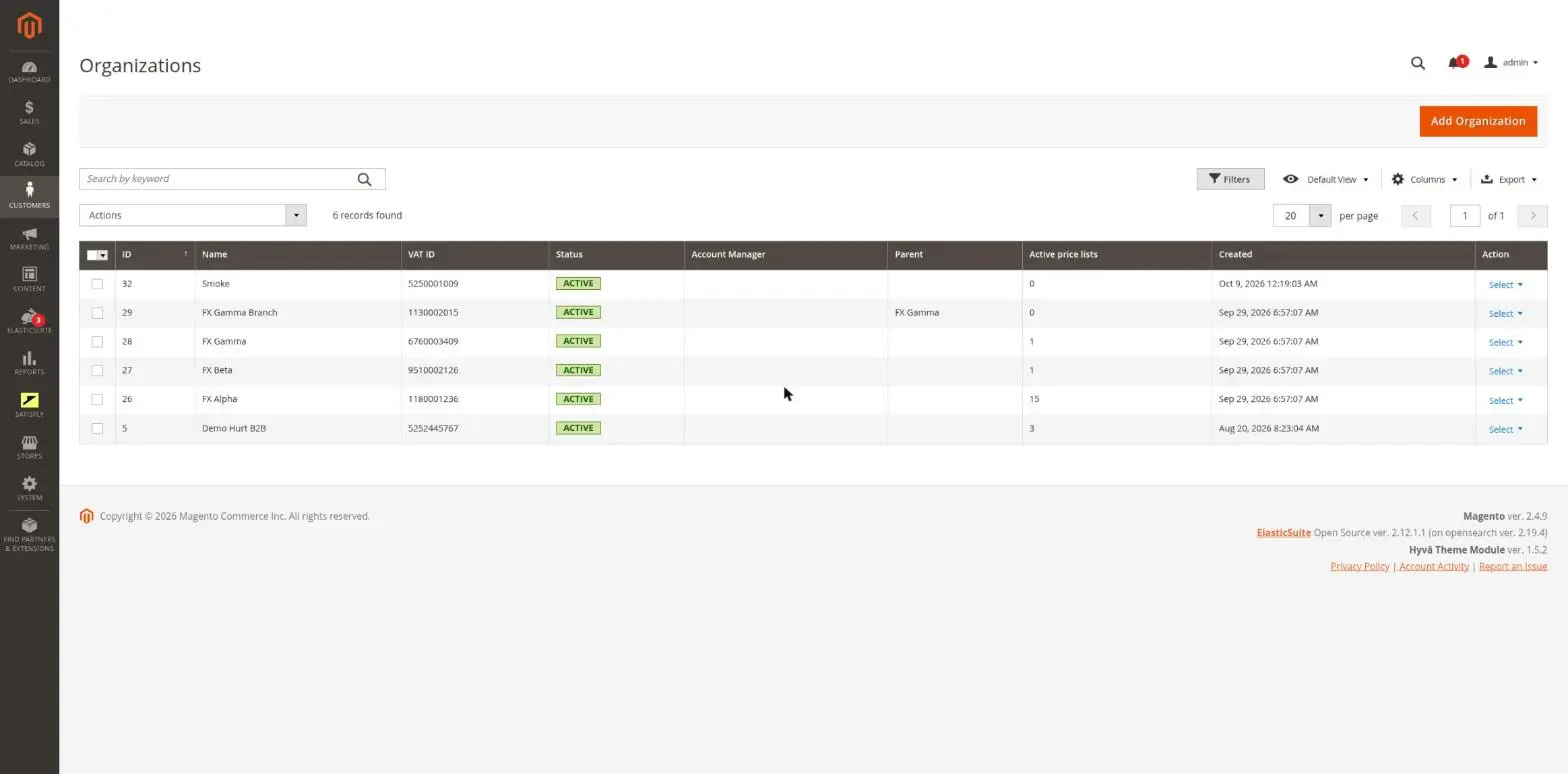
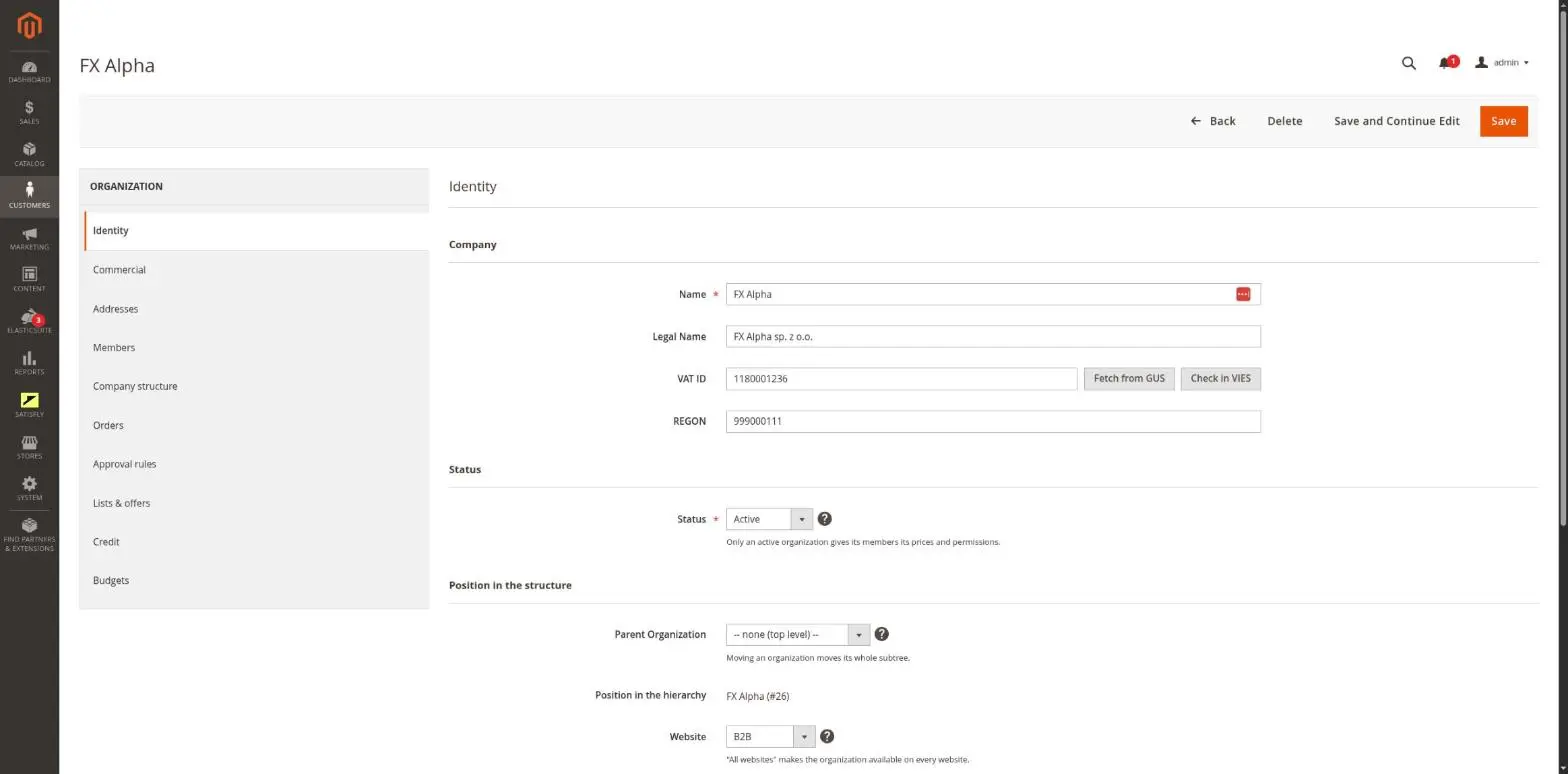
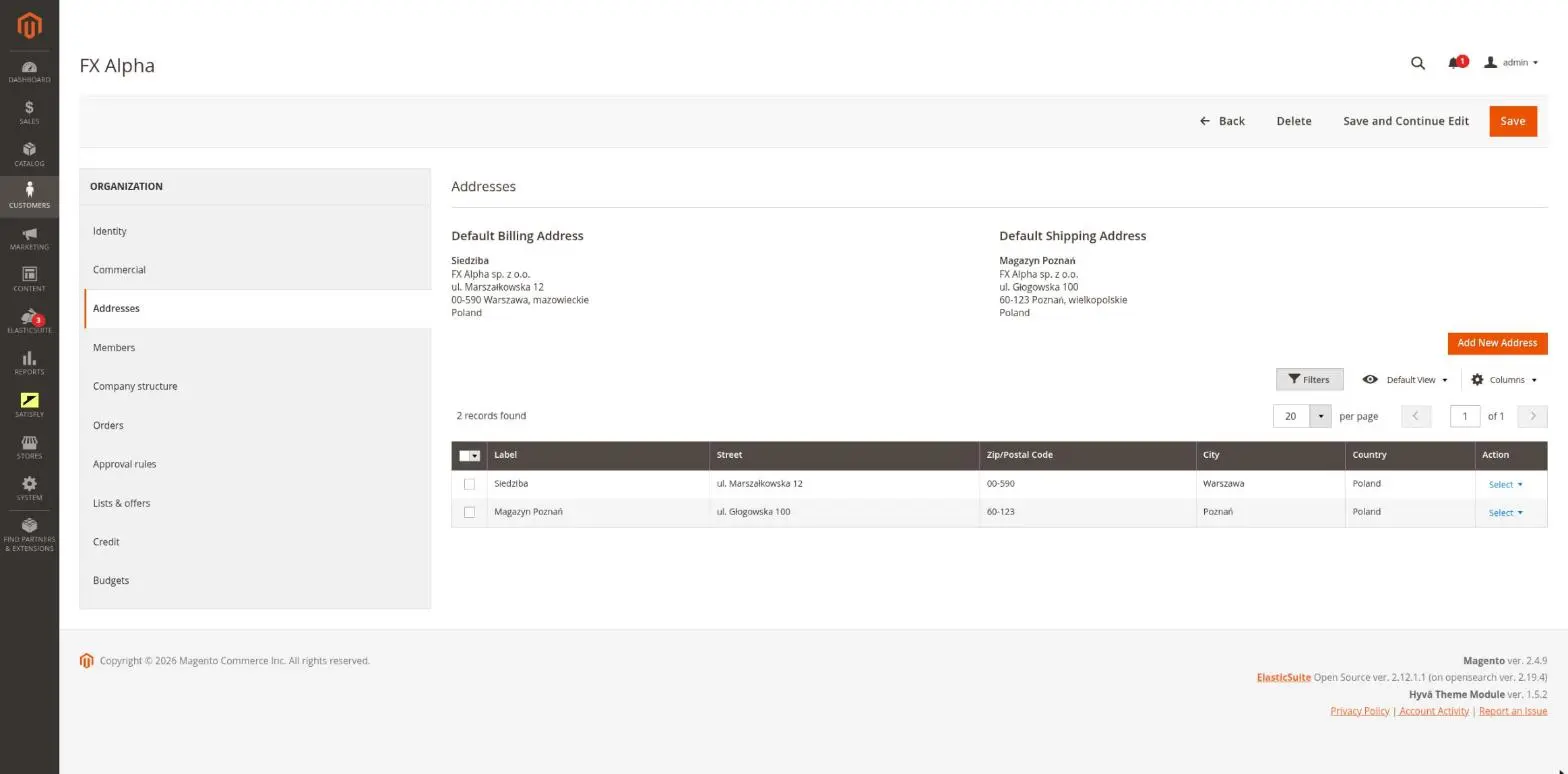
An organization list and form with Identity, Commercial and Addresses tabs, plus tabs added by other modules. You also get approve, reject and suspend actions, bulk status changes, a status email template and a full address book with default billing and shipping addresses.
-
Company structure
A company can have a parent company and branches. Website scope follows the Magento “Account Sharing” setting. Other modules pass prices and rules down the structure, through each level of parent companies.
-
Buying for a company
On every request, the module determines which company the customer is acting for, based on the session, a token or an explicit choice. A member of several companies can switch between them, and the cart is priced and tagged for the active company.
-
Purchase gate
Optionally, you can allow only members of an active company to add products to the cart, on every purchase path.
-
Storefront
Buyers get a company page, profile and address book editing, a company switcher and a company information bar in the header (Hyvä).
-
Buyer context
Code can run as a specific buyer in a company in any area: in cron jobs, in the admin console and in integrations.
Merchant
The merchant opens Customers > B2B > Organizations. A company that registered in the store appears on the list with the Pending status. The merchant opens it and chooses Approve or Reject, and the company receives an email. On the Identity and Commercial tabs, the merchant fills in the legal name, VAT number and payment terms. In the “Position in the structure” section, they set the parent company and website. Addresses are managed on the Addresses tab, where the default billing and shipping addresses are shown above the list.
Buyer
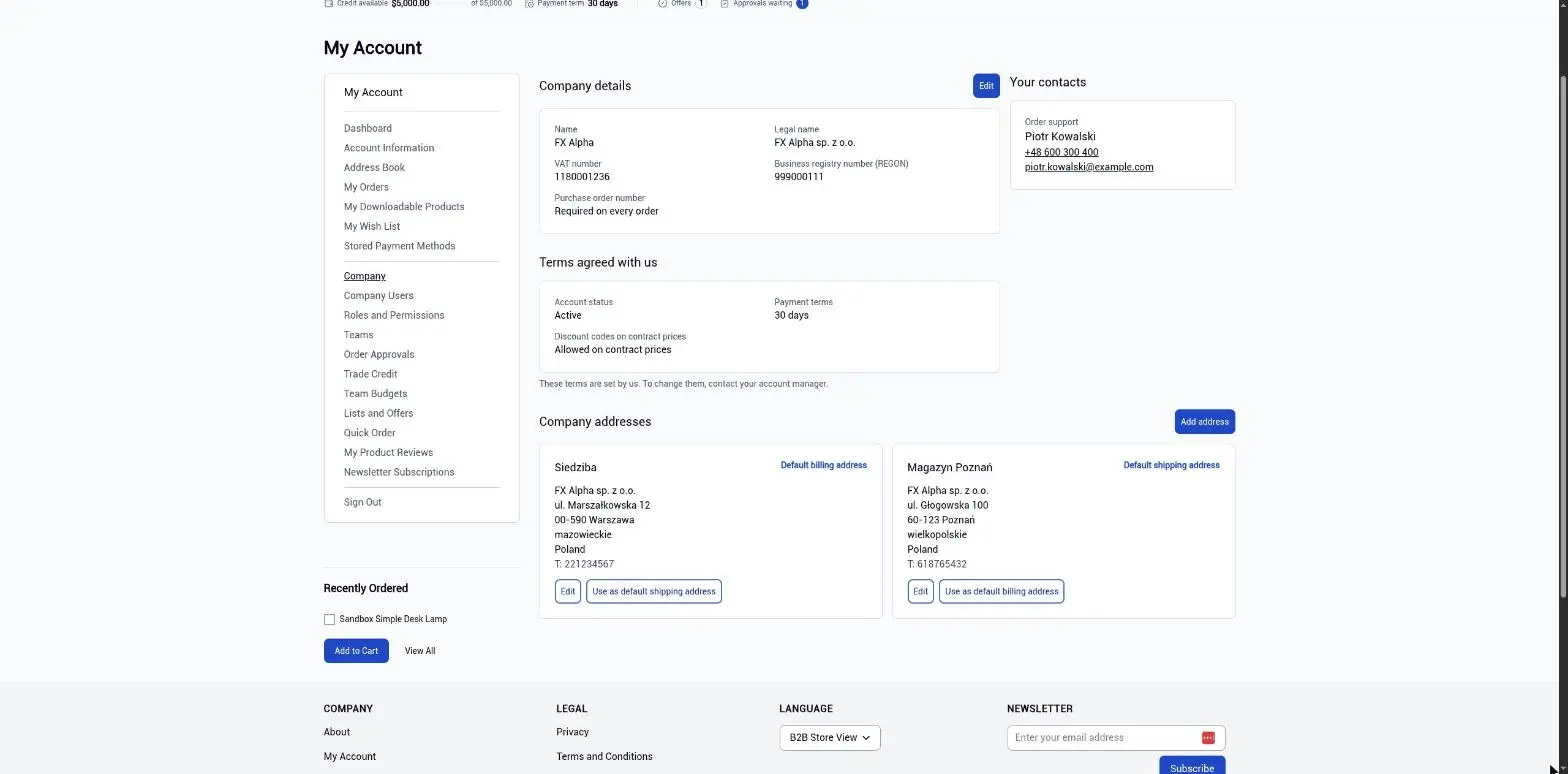
A company member opens My Account > Company to see the company details. With the right permission, they can also edit the profile and address book. A member of several companies switches the active company in the header, and prices and the cart follow that choice.

Notes and limitations
What to know before you roll out company accounts.
-
 Company relationships across websites follow the Magento Account Sharing Options setting
-
With customer accounts scoped per website, the company structure cannot span multiple websites
-
A suspended or pending company, or a blocked membership, prevents purchasing on behalf of the company
-
Member permissions come from the organization-acl module. Without it, every member can edit the company page


